Product guide
Getting started with heyEO
Set up your site, run a measured scan, decide what to change, and compare the next run against evidence you already trust.
On this page
Your first evidence loop
From project setup to a comparable rerun, without pretending that observed movement proves causation.
What heyEO is
heyEO helps a small team run an evidence loop: measure how the site and answer engines represent the product, prioritize one change, then remeasure with a comparable scan. ICP and AI results are probabilistic estimates; technical checks are deterministic observations.
Sign in
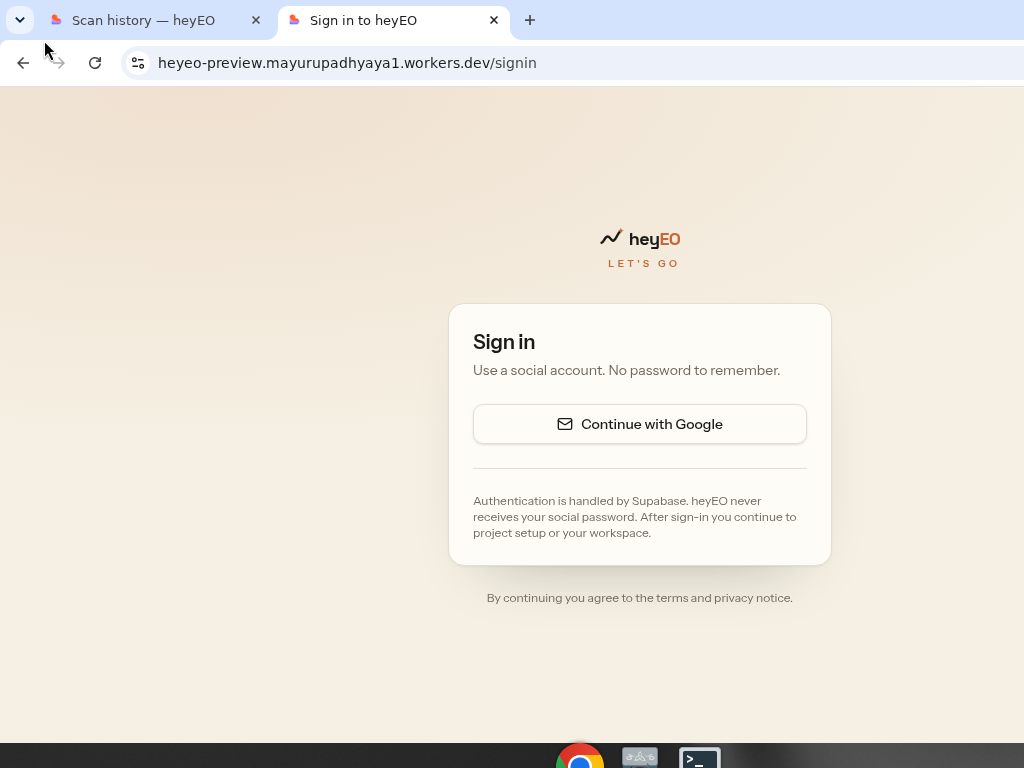
Continue with Google. Auth is handled by Supabase. heyEO never receives your social password. After sign-in you continue to project setup.
Project setup
After sign-in, enter your website and product name. You can manually fill in declared ICP, competitors, and markets/topics, or use optional independent "Suggest with AI" switches for each section.
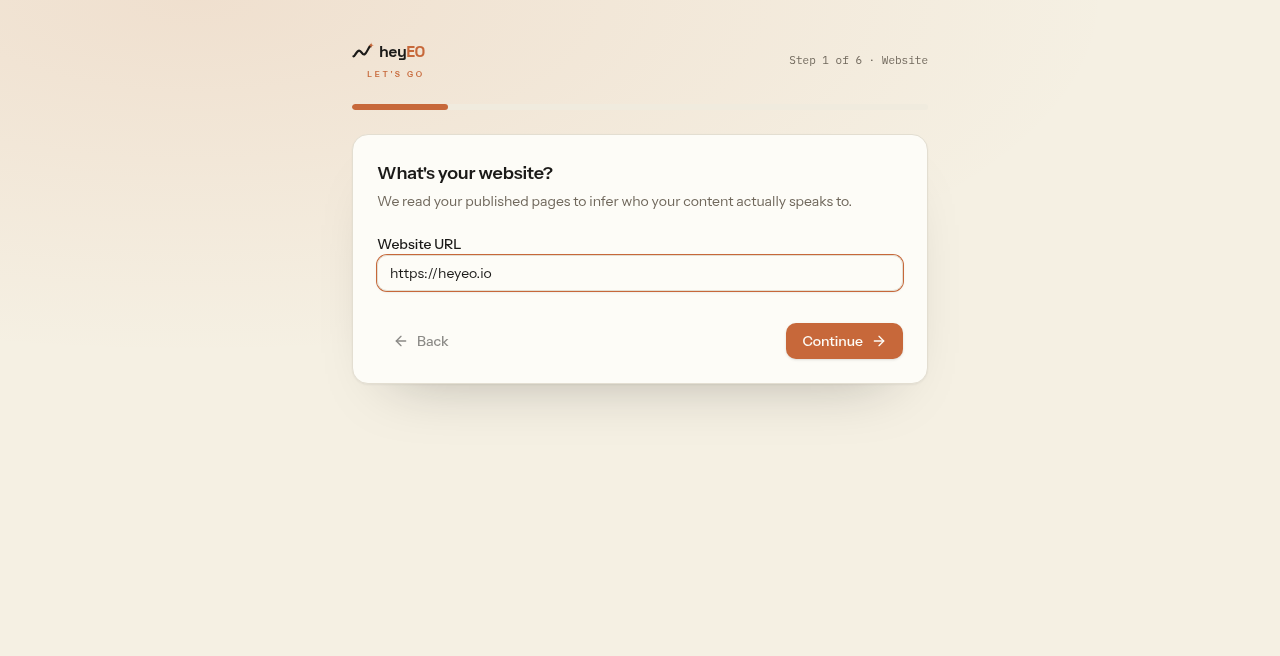
AI suggestions can draft the sections you select from the website you entered. You review and edit every suggestion before it becomes part of the project. Manual entry remains available throughout setup.
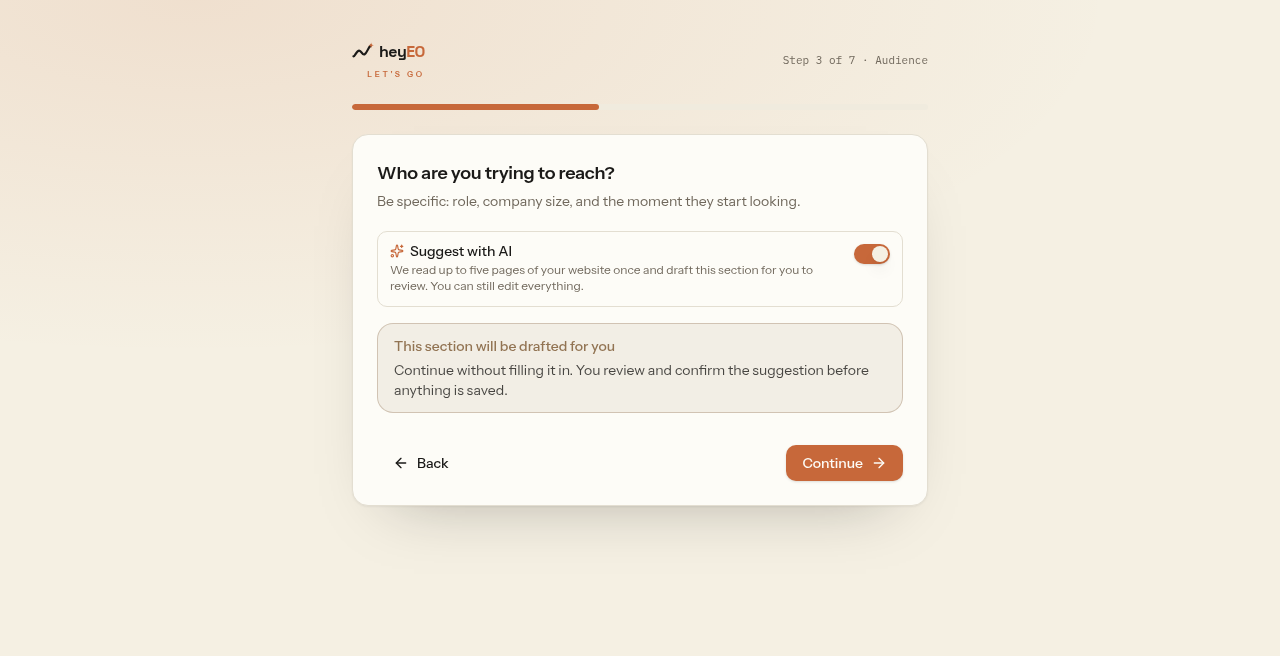
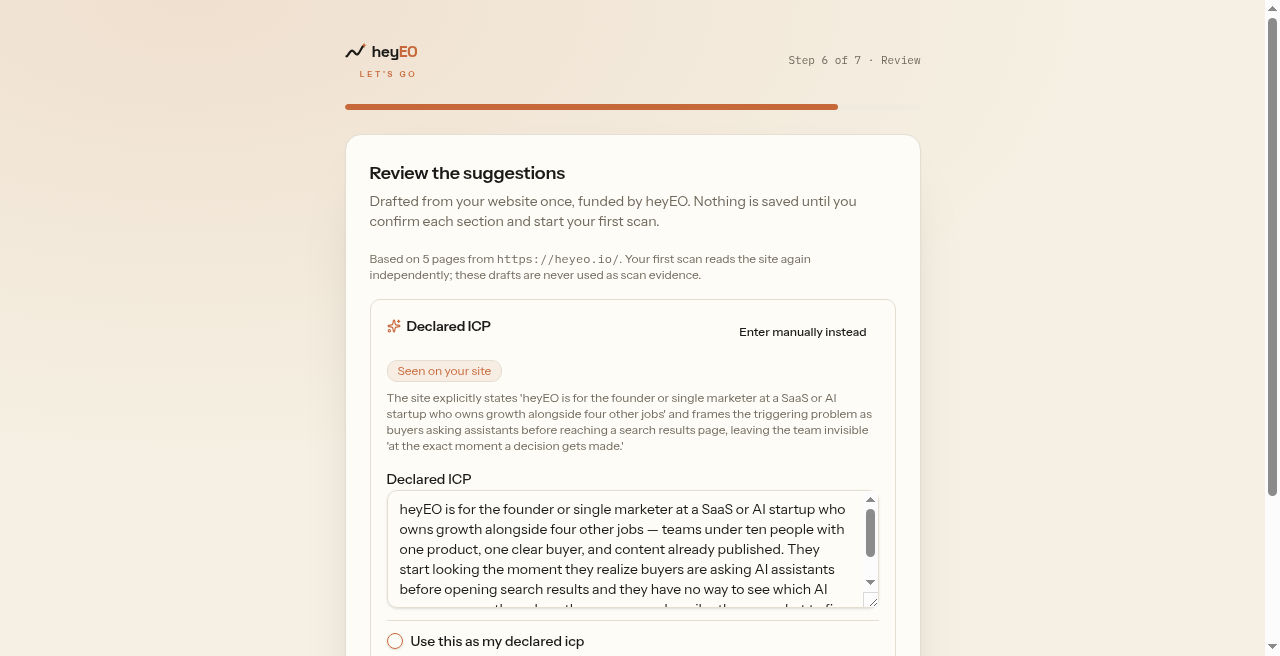
Describe the audience as specifically as you can: company size, role, industry, maturity, pain points, buying triggers and intended use cases. That declared ICP is the reference used when heyEO evaluates what the published site appears to say.
Dashboard
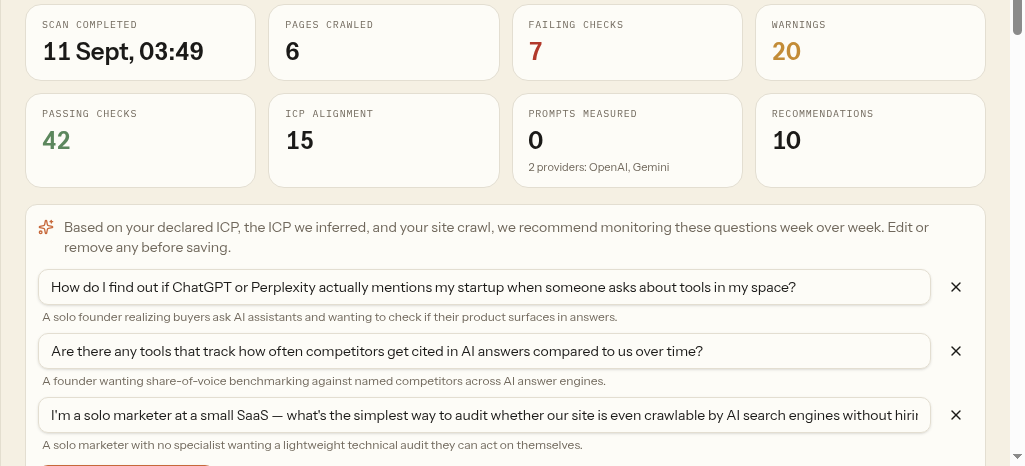
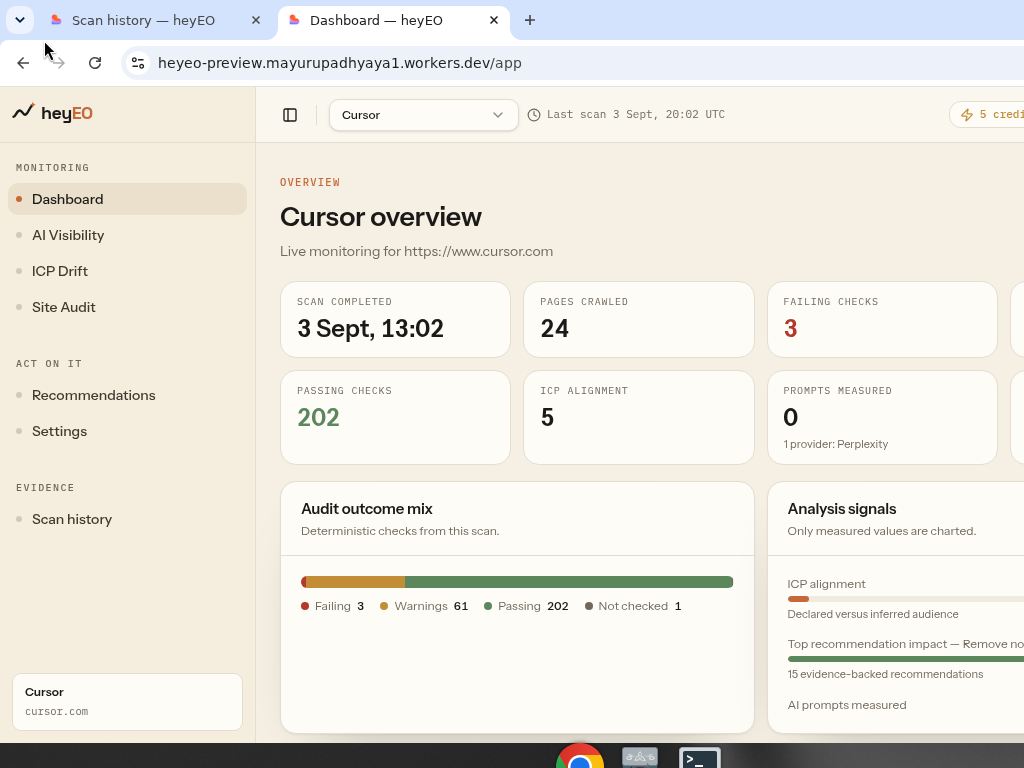
Pick a project in the switcher. The overview shows last scan, credits, pages crawled, failing and passing checks, ICP alignment, and prompts measured.
- Monitoring — Dashboard, Management report, AI Visibility, ICP Drift, Site Audit
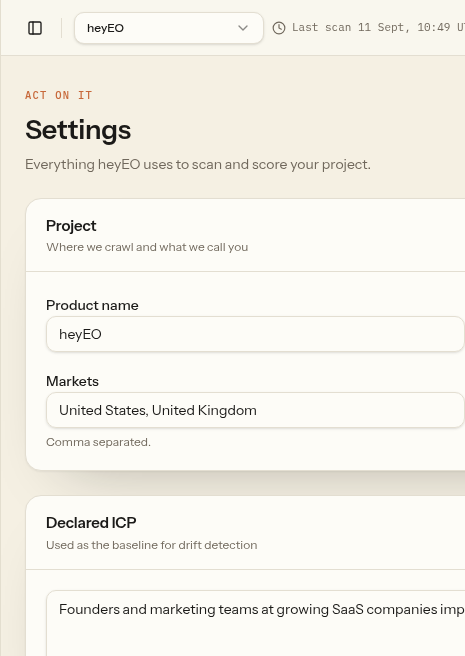
- Act on it — Recommendations, Settings
- Evidence — Scan history and Updates
Run a scan
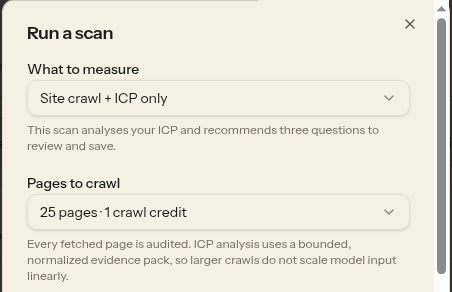
Open Run a scan. Review what will run before spending credits: monitored prompts, pages to crawl, answer engines, and the credit split between measured checks (deterministic) and AI analysis (probabilistic). Manage prompts in Settings.
Pages to crawl is an exact tier: 25, 50, 100, 150, 200, or 250 pages, priced at 1–6 crawl credits. Every fetched page is audited. ICP analysis uses a bounded, normalized evidence pack, so larger crawls do not scale model input linearly.
Read results
When a scan completes, the dashboard shows audit outcome mix and analysis signals. Failing checks and recommendations surface here.
If a crawl-only run skips ICP analysis, ICP Drift keeps the latest successful ICP evidence and links back to the source scan instead of pretending it was remeasured.
History and baseline
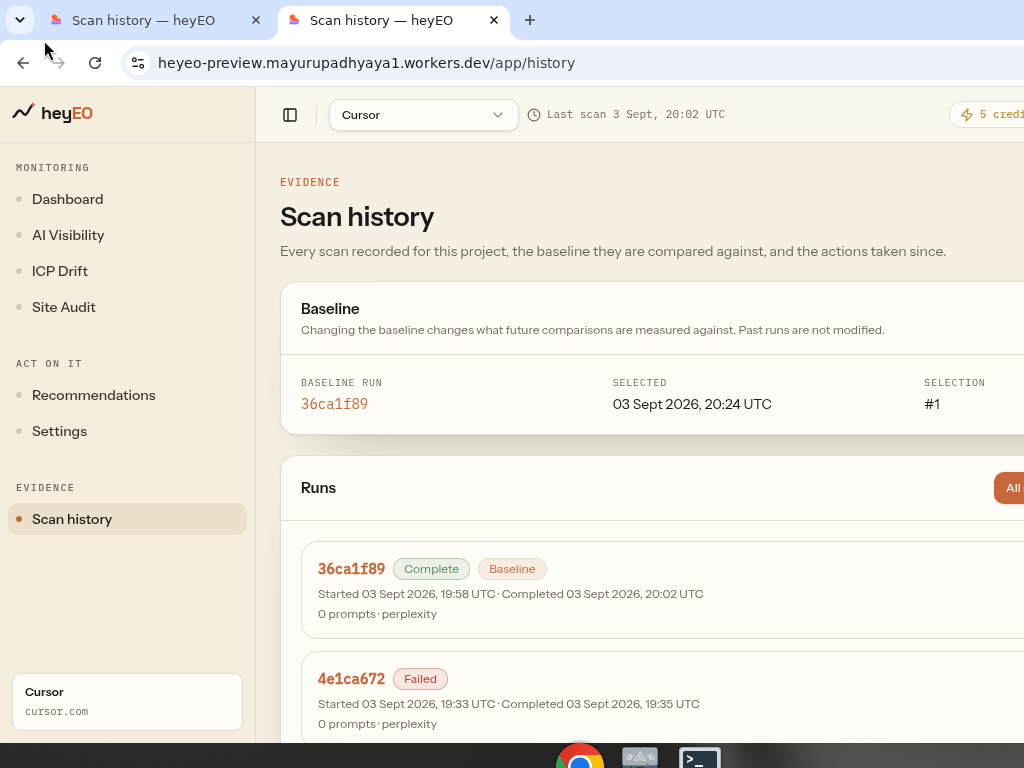
Evidence → Scan history lists every run with a readable name (mode and page allowance), not a truncated run id. Set a baseline; future comparisons measure against it. Past runs are not modified. Previous baselines stay listed by selection number.
Management report
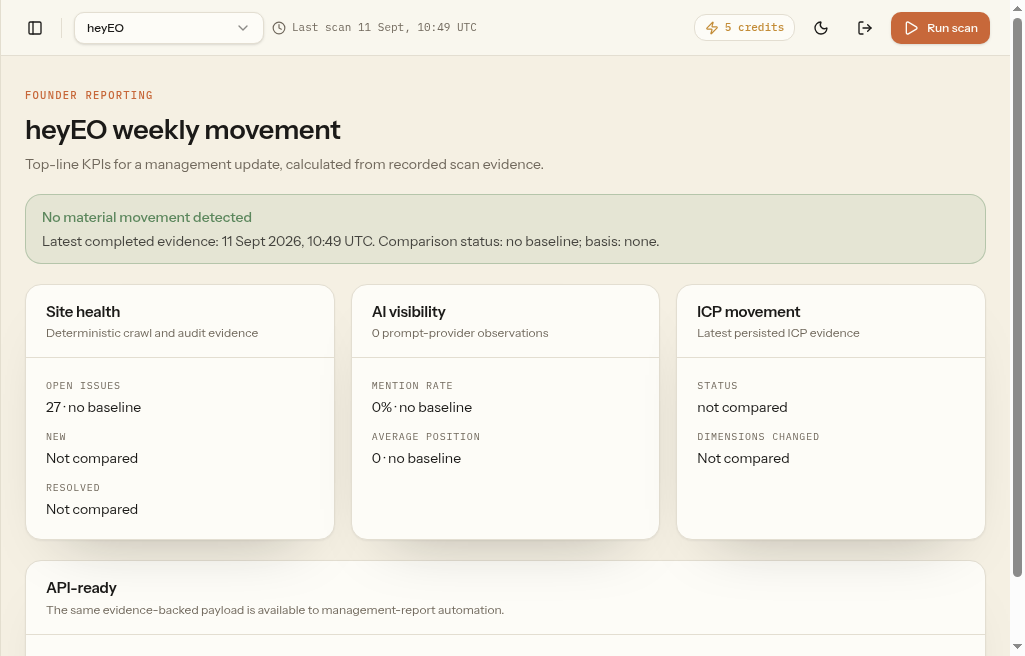
Monitoring → Management report summarizes movement between recorded scans: open, new and resolved site issues; AI mention rate and average position; and ICP status with dimensions changed. Each value shows the latest figure and its comparison basis, so a reader can see both the observation and the period behind it.
The same payload is available to automation at GET /api/v1/projects/{projectId}/management-report.
Baseline comparison
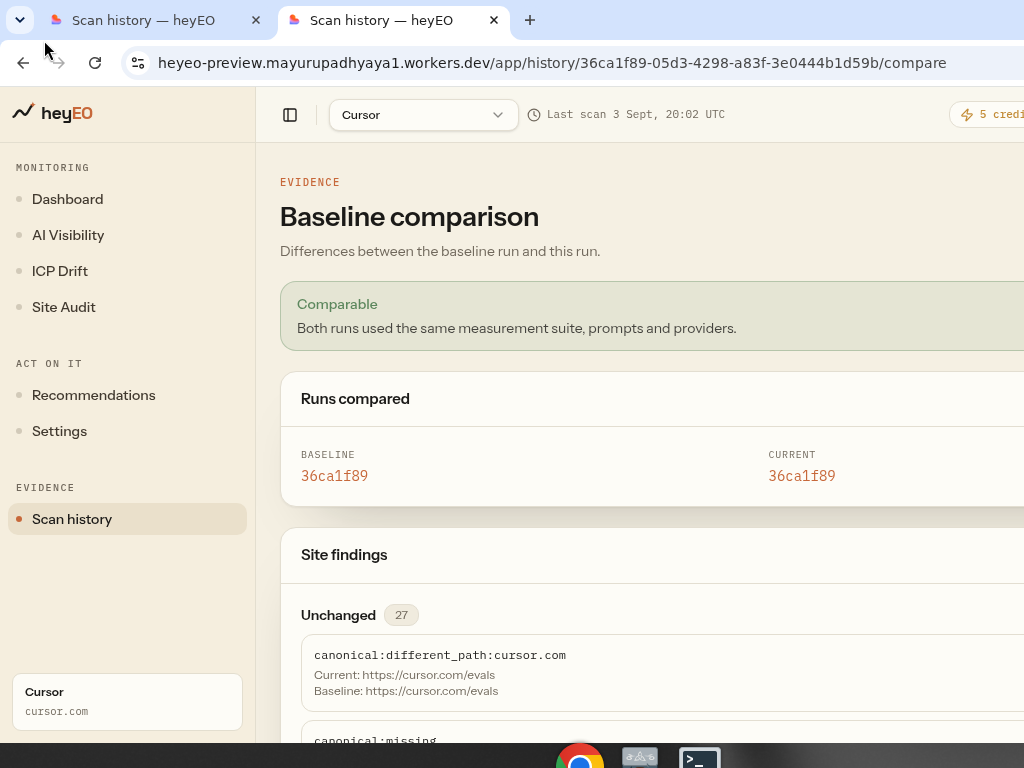
Open a run’s compare view. Site, AI, and ICP sections compare independently. A prompt or provider mismatch can mark matching sections partial instead of hiding every difference. Site findings still show what changed vs the baseline.
Recommendation updates
Evidence → Updates shows tracked recommendations that look actioned after a later scan. When a later scan suggests a tracked recommendation looks actioned, confirm it here. Confirmation records the change and advances the recommendation — detection never does that alone.
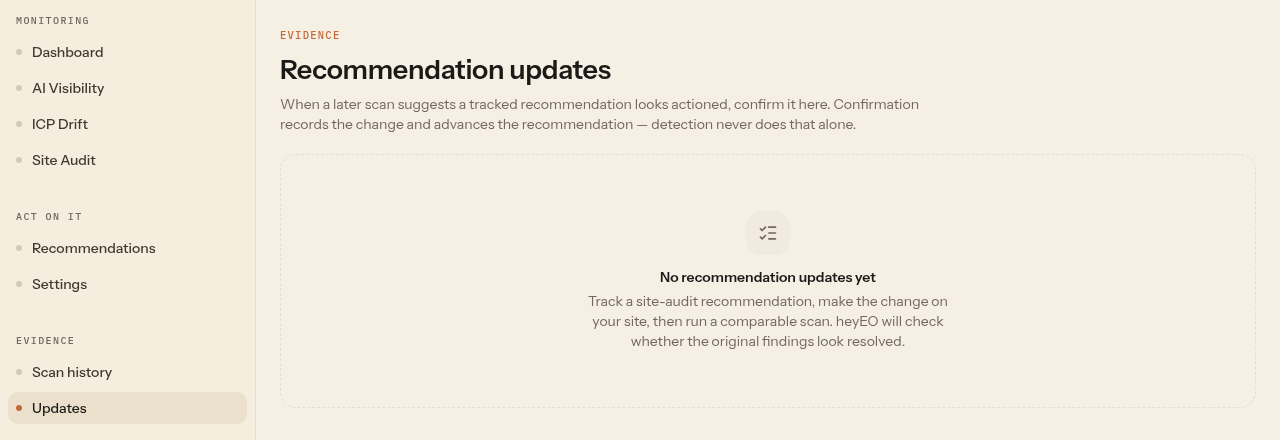
For each candidate, you choose: Confirm actioned; Not this change; or Review later. Detection alone never marks work complete; confirmation records what you actually changed.
After a completed scan, heyEO may show a non-blocking notice when tracked recommendations look actioned. The notice reads "A tracked recommendation looks actioned" and offers a "Review updates" action. This does not start a new scan.
Differences observed after the later scan are not attributed to the recommendation. The update records the intervention and the subsequent evidence, not proof that one caused the other.
Recommendations
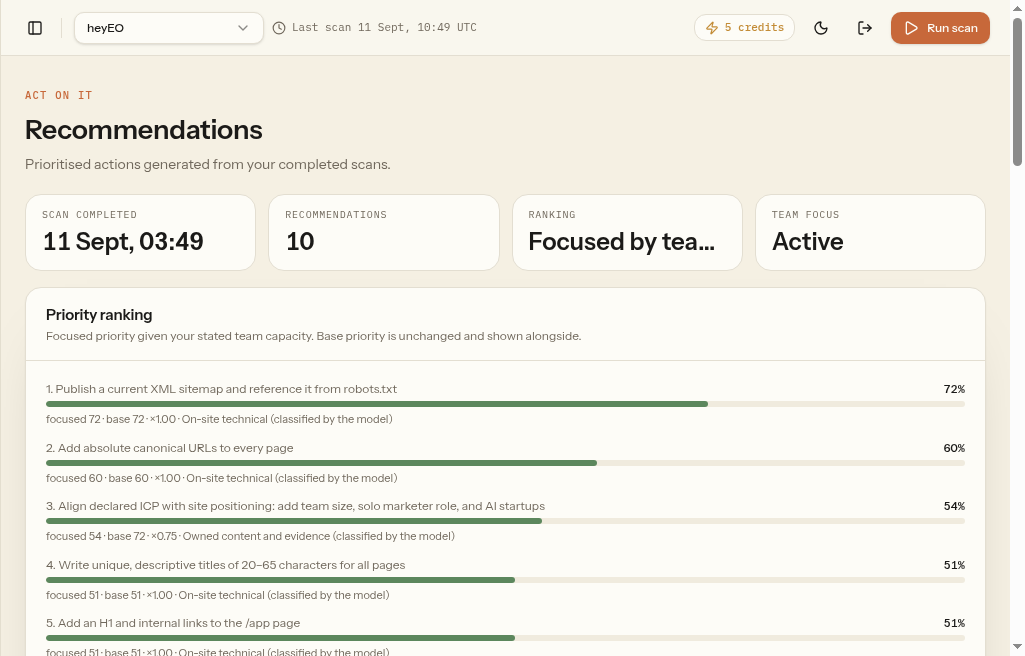
Act on it → Recommendations turns scan evidence into a ranked list of possible actions. Base priority balances impact, confidence and effort; it is a planning aid, not a prediction of search or revenue impact.
When Team focus is set in Settings, each recommendation gains a second focused priority that reflects current delivery capacity. You can still see the base score and work type, and clearing Team focus restores the base ordering.
When you track the same site finding through retitled recommendations, the Updates inbox collapses them into a single pending candidate. Confirming one covers that finding set for the project; siblings already confirmed anywhere on the project do not reappear as separate pending cards.
Team focus
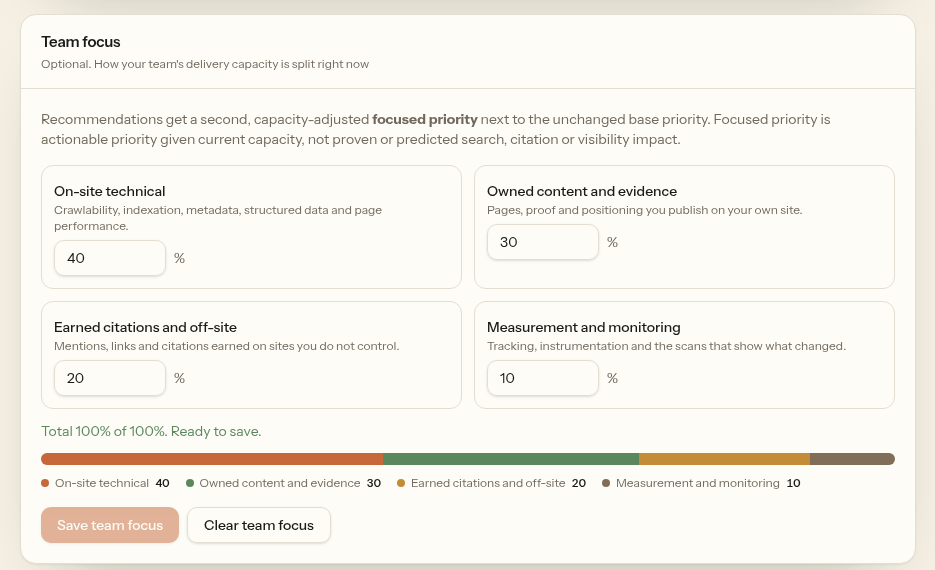
Settings → Team focus is optional. Split 100% of current delivery capacity across four work types with whole percentages 0–100 that must total exactly 100:
- On-site technical — crawlability, indexation, metadata, structured data, page performance
- Owned content and evidence — pages and proof you publish
- Earned citations and off-site — mentions and links you do not control
- Measurement and monitoring — tracking, instrumentation, scans
Save and Clear are independent of the main Settings form. Clear returns Recommendations to base priority order. Team focus is never auto-initialised; an empty form means the lens is off.
The automation API does not return team focus in this release.
AI Visibility and Site Audit
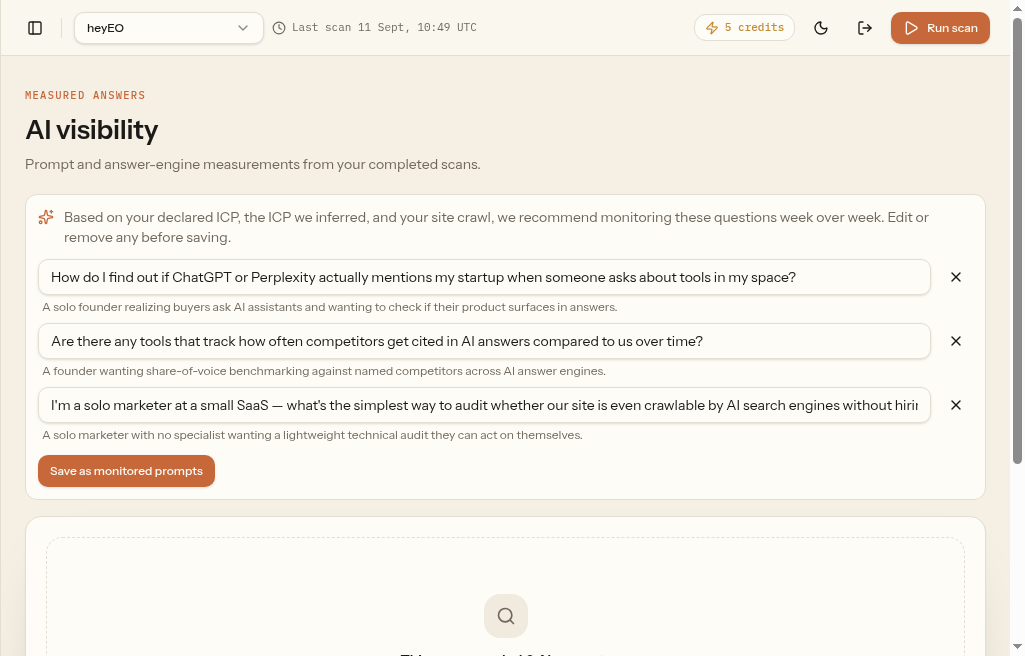
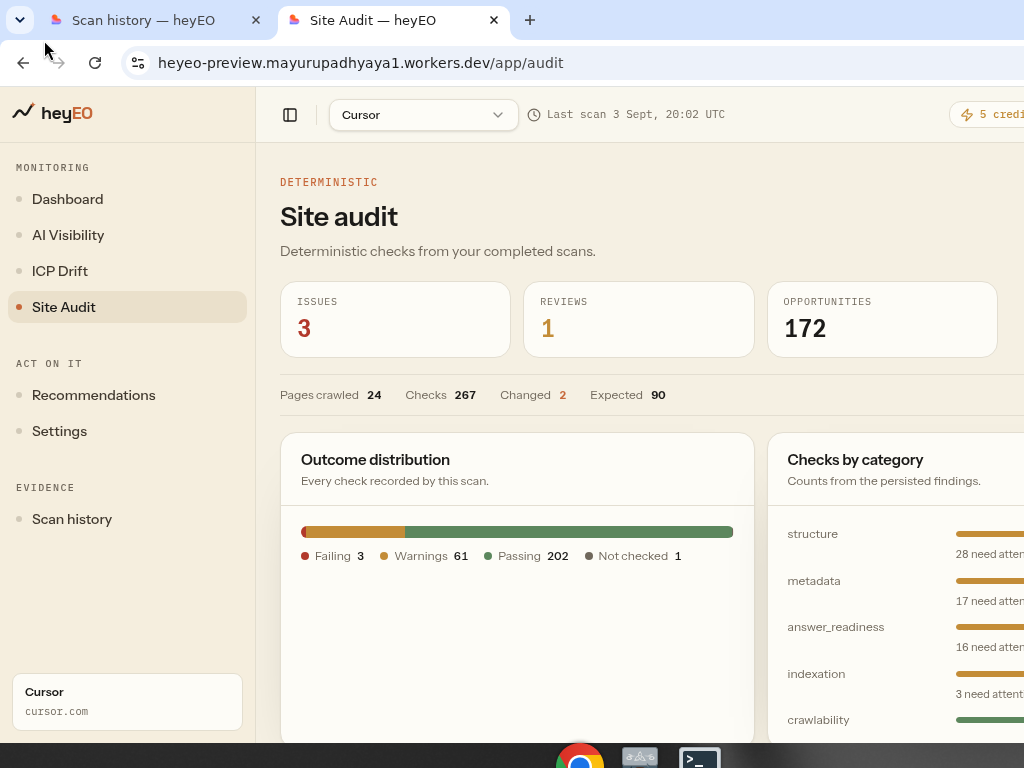
AI Visibility shows prompt and answer-engine measurements. If a scan sampled 0 prompts, manage monitored prompts in Settings and run again. Site Audit lists deterministic checks: issues, reviews, opportunities, and checks by category.
Automation tokens
Settings → Automation tokens mints project-bound bearer tokens for the private automation API. The full token value is shown once, so store it securely. Continue to the API Docs for authentication, examples and the endpoint reference.
Scan frequency is shown as a paid preview and is currently unavailable. Run scans manually when you are ready to record a new measurement.